Software developers spend an average of eight to twelve hours a day staring intently at glowing screens. Unlike casual web browsing, programming requires absolute visual precision to catch missing semicolons, track variable names, and read dense documentation. Consequently, complaints of dry eyes, migraines, and blurred vision—collectively known as Computer Vision Syndrome—are rampant in the tech industry.
To combat this, a niche but growing community of programmers is turning to a radical solution: replacing their glowing LCDs with electronic paper. If you are seeking relief for your eyes, you might be wondering how to use e-ink for coding and whether it is actually a viable daily driver. This guide explores the practicality of programming on electronic paper, how to adapt your workflow, and the trade-offs involved in ditching the backlight.
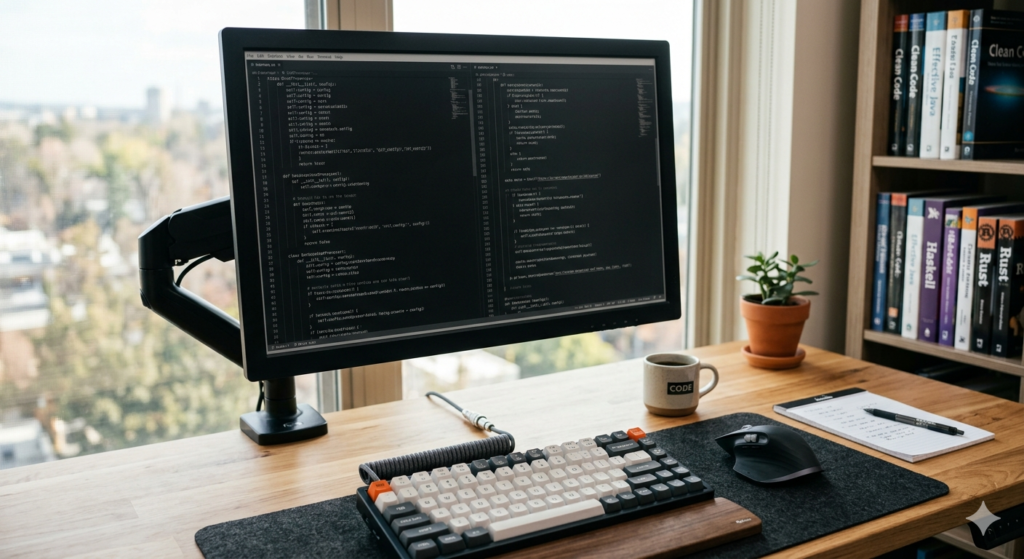
The Rise of Programming on E-Paper
For years, E-Ink was restricted to six-inch e-readers. Today, companies like Dasung, Onyx Boox, and Bigme manufacture 13-inch and 25-inch electronic paper displays designed specifically to be plugged into a computer via HDMI or USB-C.
Learning how to use e-ink for coding involves connecting an electronic paper monitor to your workstation to write and review code without a backlight. This setup relies on ambient light to display text, virtually eliminating the harsh glare and blue light that cause severe developer eye strain.
Because code is primarily static text, it is theoretically the perfect use case for electronic paper. Once a line of code is written, the screen does not need to refresh to maintain the image, giving your eyes the exact same experience as reading a printed textbook.
Adapting Syntax Highlighting for E-Ink
The most significant hurdle for developers transitioning to this technology is the loss of color. Modern programming relies heavily on visual cues: green for strings, red for errors, and blue for functions. Because standard E-Ink panels are grayscale, these distinct colors often blur into an unreadable, muddy gray.
To fix this, you must rethink your syntax highlighting e-ink strategy.
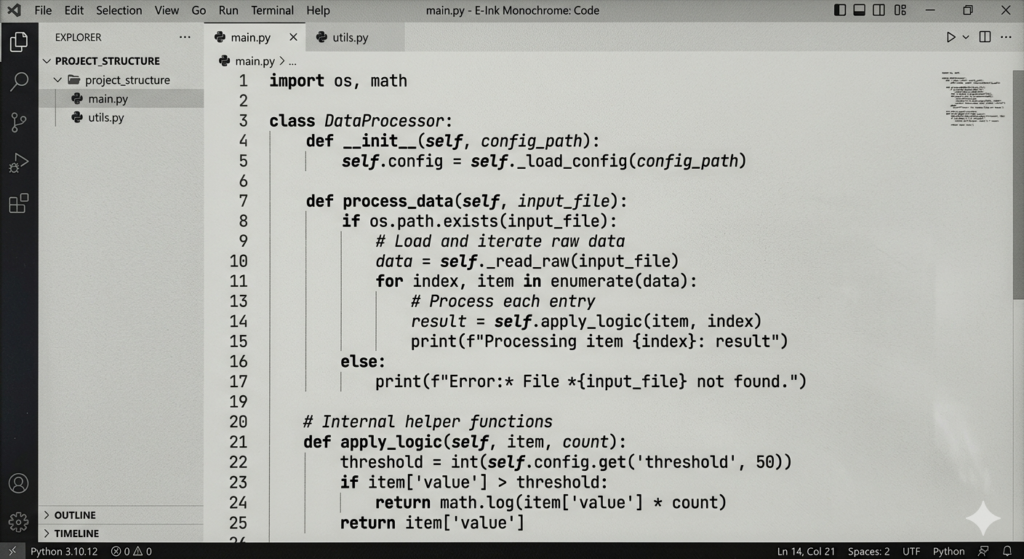
- High-Contrast Themes: Switch your IDE (Integrated Development Environment) to a high-contrast monochrome theme. Many developers use themes originally designed for colorblindness.
- Font Weights: Instead of relying on color, use font weights and styles to differentiate code. For example, set functions to bold, comments to italic, and strings to an underline.
- Specific Extensions: Popular editors like VS Code have community-built text editor themes specifically optimized for the 16-level grayscale limitations of electronic paper.
Managing Refresh Rates and Workflow Friction
As we have covered in previous hardware deep-dives, E-Ink screens are physically slower than LCDs. If you try to drag a window across an E-Ink monitor, it will stutter and leave a ghostly trail of pixels behind.
The Keyboard-Centric Workflow
Because mouse movement is frustratingly laggy on e-paper, successful programming on e-paper requires a keyboard-centric workflow. Developers who use Vim, Emacs, or rely heavily on keyboard shortcuts in their IDE will adapt much faster. When you navigate via keyboard, the screen only updates exactly where the cursor moves, making the latency far less noticeable.
Single-Tasking Focus
Using a slower monitor naturally discourages you from rapidly alt-tabbing to YouTube or social media. This friction aligns perfectly with the philosophies discussed in our core guide, Digital Minimalism Meaning: A Guide to Intentional Tech Use. The monitor acts as a physical barrier to distraction, forcing you into a state of deep, uninterrupted coding.
Ergonomics and Setup
Unlike glowing monitors, an E-Ink screen must be properly lit by external sources. Setting up a desk lamp or a monitor light bar to wash the screen in warm, even light is critical for readability.
Furthermore, code files are notoriously long. Securing the display to a sturdy E-Ink Monitor / Vertical Stand allows you to rotate the screen 90 degrees into portrait mode. This orientation lets you read significantly more lines of code at a glance without needing to scroll, which further reduces screen refresh delays and improves your overall posture.
Conclusion
Determining how to use e-ink for coding effectively comes down to managing expectations. It is not a direct, drop-in replacement for a high-refresh-rate 4K color monitor. It requires you to adopt a keyboard-first workflow, tweak your text editor themes, and accept a learning curve regarding screen refresh rates.
However, for developers suffering from chronic migraines or severe visual fatigue, it is highly practical. By turning your code into “digital paper,” you can significantly extend your comfortable working hours and protect your long-term eye health in a demanding industry.
Frequently Asked Questions (FAQ)
1. Is the mouse lag too bad for web development?
For back-end development or scripting, the lag is negligible. For front-end web development—where you must constantly inspect UI elements, check CSS colors, and test animations—an E-Ink monitor is highly impractical and will slow down your workflow.
2. Can I use a dual-monitor setup with LCD and E-Ink?
Yes. This is the most popular setup. Developers keep an E-Ink monitor directly in front of them for typing code and reading documentation, while keeping a standard LCD monitor to the side to view the compiled software, check UI colors, or watch video tutorials.
3. Which IDEs work best with E-paper?
Terminal-based editors like Vim and Neovim are ideal because they require no mouse interaction and update very cleanly. However, modern IDEs like VS Code, IntelliJ, and Sublime Text work perfectly fine once you apply a high-contrast monochrome theme.
4. Do E-Ink monitors need a special graphics card?
No. Most modern E-Ink monitors plug in via a standard HDMI or USB-C port, just like any normal monitor. The translation of the image to the electronic ink is handled by the hardware controller built inside the monitor itself.
5. How do I clear ghosting while typing code?
Most E-Ink monitors come with a physical “refresh” button on the bezel or a software shortcut you can map to your keyboard. If your code starts to look muddy from previous scrolling, a quick tap of this button will flash the screen black and restore crisp text.