You have just spent three hours meticulously mapping out a new project on your digital tablet. The handwriting is neat, the diagrams are perfect, and the information is critical. But what happens if you accidentally drop that tablet on the concrete floor, or leave it on a train? If your files are only saved locally, those brilliant ideas are gone forever.
The primary advantage of moving away from physical paper is the ability to create secure, redundant copies of your work. However, setting up the connection between your device and the internet can sometimes be confusing. This step-by-step guide covers the best methods for syncing handwritten notes to cloud platforms, ensuring your data remains safe, organized, and accessible from anywhere.
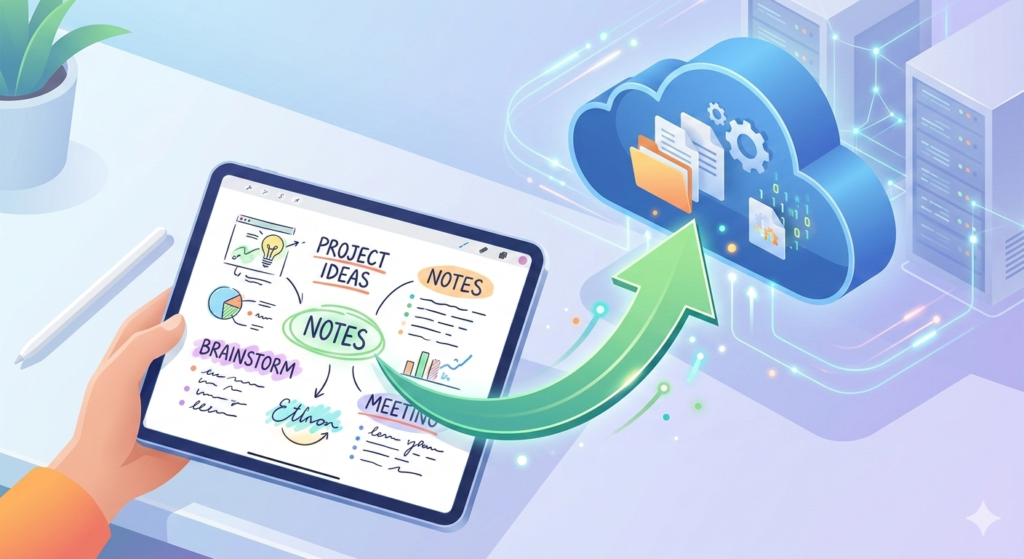
Understanding Cloud Synchronization
Before diving into the setup process, it is important to understand exactly what is happening to your files.
Syncing handwritten notes to the cloud is the automated process of copying digital ink files from a tablet to a remote server. This ensures your handwritten data is securely backed up, continuously updated, and easily accessible from any smartphone or computer connected to the internet.
Instead of relying on a single piece of hardware, your notes become device-agnostic. You write them on a tablet, view them on your phone, and print them from your laptop.
The Importance of Digital Backup Strategies
Relying solely on your tablet’s internal storage creates a single point of failure. Effective digital backup strategies require data redundancy.
In the IT world, the standard rule is “3-2-1”: keep three copies of your data, on two different types of media, with one copy stored off-site. By sending your notes to a remote server, you immediately satisfy the off-site requirement. If your home office experiences a power surge or a hardware malfunction, your intellectual property remains untouched.
Native Integration: Google Drive and Dropbox Sync
Most modern note-taking tablets (like the ReMarkable 2, Boox, and Supernote) come with built-in integration for major storage providers. This is usually the easiest route for users who already have established digital filing cabinets.
Google Drive Integration
Linking your Google Drive allows your tablet to act as an extension of your existing workspace. You can configure your device to automatically export a PDF copy of a notebook to a specific Google Drive folder every time you close the file. This makes sharing meeting notes with colleagues as simple as sending a standard Drive link.
Dropbox Sync
Similar to Google Drive, Dropbox sync works seamlessly in the background. Because handwritten note files (especially those with many layers or high-resolution templates) can become large over time, utilizing a dedicated Cloud Storage Service with ample storage limits ensures you never hit a sync error during an important meeting.
To understand how this fits into your overarching workflow, you can review our foundational guide on Digital Note Taking Mastery: From Handwriting to The Cloud.
Using Note-Specific Apps: Evernote E-Ink and OneNote
If you prefer a more structured, searchable database over a standard folder system, linking your device to a note-specific application is the best choice.
Evernote E-Ink Integration
Using Evernote with E-Ink devices has become highly refined. When you sync to Evernote, your handwritten pages are often processed through the app’s powerful Optical Character Recognition (OCR) engines. This means your cursive handwriting becomes instantly searchable within the Evernote app on your desktop.
Microsoft OneNote
Many Android-based E-Ink tablets allow you to download the OneNote app directly. While writing directly in the app can sometimes have slight latency, the benefit is immediate synchronization. The stroke you make on the tablet appears on your desktop monitor seconds later.
Step-by-Step Setup Guide
While interfaces vary by manufacturer, the workflow for establishing a cloud connection generally follows these steps:
- Authorize the Account: Navigate to your tablet’s
Settingsmenu and find theAccountsorCloud Synctab. Select your preferred provider and log in. You will usually need to authorize the device via a web browser on your phone or computer. - Choose Export Format: Decide how you want the files saved. Exporting as a “PDF” is universally readable but usually uneditable. Exporting as “PNG” saves each page as an image.
- Set Sync Frequency: Choose between “Auto-Sync” (which uploads changes in the background while on Wi-Fi) or “Manual Sync” (which only uploads when you tap a specific button, saving battery life).
- Verify the Connection: Open a test notebook, draw a squiggle, close the book, and check your computer to ensure the file appears in your chosen cloud folder.
Conclusion
Setting up a reliable system for syncing handwritten notes to cloud storage is a non-negotiable step for anyone serious about digital productivity. It takes only five minutes to configure but provides years of peace of mind.
By choosing the right integration—whether that is a simple Google Drive folder or a robust Evernote database—you protect your ideas from hardware failure and ensure your workflow remains uninterrupted, no matter where you are or what device you are using.
Frequently Asked Questions (FAQ)
1. Do I need an active Wi-Fi connection to sync my notes?
Yes. To push the data from your tablet to the remote server, you must be connected to the internet. However, you can write offline all day; the device will simply queue the changes and sync them the next time you connect to a network.
2. Can I edit my handwritten notes on my computer after they sync?
Generally, no. Most tablets sync handwritten notes as flat PDF files or images to preserve the exact look of your ink. You can view them, print them, or highlight them on your computer, but you cannot erase the original pen strokes unless you use proprietary companion apps provided by the tablet manufacturer.
3. Does background syncing drain my tablet’s battery?
Yes. Maintaining an active Wi-Fi connection and pushing data files uses power. If you want to maximize your E-Ink tablet’s battery life, turn off “Auto-Sync” and manually sync your files once a day or once a week.
4. Are my notes secure and private in the cloud?
Major providers like Google Drive, Dropbox, and Microsoft use high-level encryption to protect data in transit and at rest. However, if you are working with highly sensitive legal or medical documents, you should review your specific industry’s compliance regulations (like HIPAA) before syncing to standard consumer cloud servers.
5. What happens if I delete a note on my tablet?
This depends on your specific sync settings. In a true “two-way sync,” deleting a file on the tablet will also delete it from the cloud. In a “one-way backup,” the file will remain in the cloud even if removed from the tablet. Always check your device’s manual to understand its specific deletion protocol.