You are deep into a mystery novel, you tap the screen to turn the page, and suddenly you notice something distracting. The text from the previous chapter is still faintly visible behind the new words. This phenomenon, known as "ghosting," is one of the most common complaints among new e-reader users.
Many users panic, thinking their expensive device has suffered permanent screen burn-in similar to an old plasma TV. Fortunately, this is rarely the case. In this guide, we will explain how to fix e-ink ghosting, why it happens, and the settings you can adjust to keep your digital paper looking crisp.
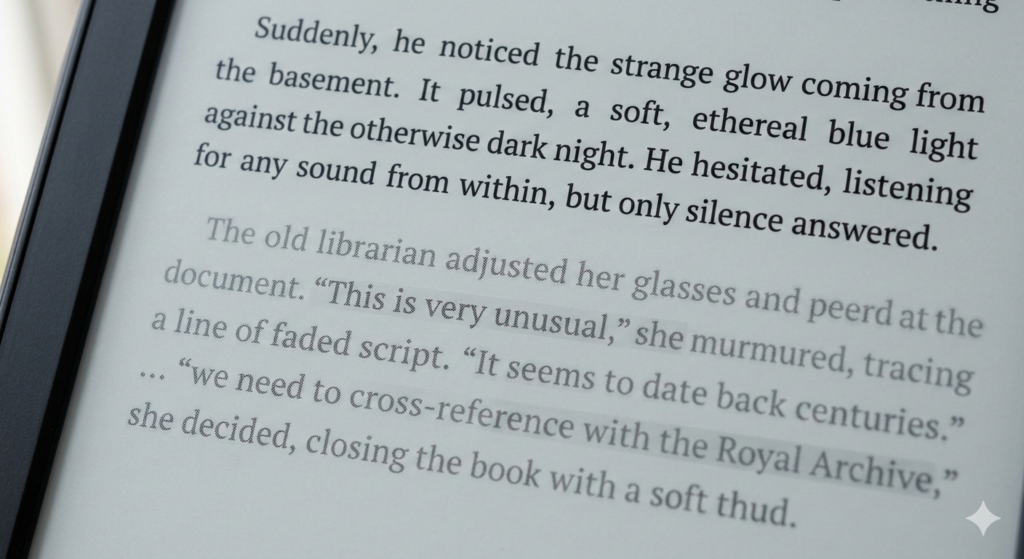
What Is E-Ink Ghosting?
Before fixing the issue, it is important to understand what it is. Unlike OLED or LCD screens where pixels emit light and switch instantly, E-Ink relies on the physical movement of charged particles.
E-Ink ghosting occurs when the charged pigment particles inside the display do not fully reset to their neutral position during a screen update. This leaves a faint, static remnant of the previous image or text visible in the background of the new page.
Because the pigments are suspended in a viscous fluid, they sometimes "stick" or don't move fast enough, especially if the screen is refreshing quickly.
The Quick Fix: Trigger a Full Refresh
The most effective way to eliminate ghosting is to force a Full Refresh.
In standard operation, most devices use a Partial Refresh. This only moves the specific pixels that need to change, which saves battery and keeps page turns snappy. However, over time, some ink particles get "lazy" and stay behind. A full refresh cycles every single pixel on the screen—flashing from black to white and back again—to reset the electrical charge and clear away those stubborn remnants.
How to Trigger a Refresh
Since every interface is a bit different, look for these common settings based on the type of device you own:
- Dedicated E-Readers: Most dedicated readers are set to refresh automatically every few page turns. If you're seeing too much ghosting, dive into your Reading Settings or Display Options. Look for a toggle labeled "Page Refresh" or "Refresh Every Page" to ensure the screen cleans itself more frequently.
- Multifunction E-Ink Tablets: Devices that run more complex apps often have a manual override. Look for a circular arrow icon or a dedicated button in the navigation bar or "Control Center." Tapping this usually triggers an instant, one-time flash to clear the screen without changing your settings.
- Universal Shortcut: On many devices, simply opening and closing a menu or returning to the home screen will trigger a full refresh by default. If you’re in the middle of a book and notice ghosting, a quick tap to bring up the reading toolbar often does the trick.
Pro Tip: If you are using a device in cold weather, ghosting is much more likely to occur. E-Ink particles move slower in low temperatures, so you may need to increase your refresh frequency during the winter months!
Deep Dive: Refresh Modes and Waveforms
If you are using a more advanced E-Ink tablet for note-taking or web browsing, ghosting is often a result of the "Refresh Mode" you have selected. As discussed in our article on What is E-Ink Technology?, moving particles takes time.
Speed vs. Clarity
- Normal / Regal Mode: This prioritizes image quality. It uses complex "waveforms" (voltage patterns) to minimize ghosting. Use this for reading books.
- A2 / Speed / X-Mode: These modes prioritize speed. They sacrifice the "cleaning" cycle to make the screen faster for typing or scrolling. Ghosting is a normal side effect of these modes.
If the ghosting bothers you, simply switch your device back to "Normal" or "HD" mode.
Is It Burn-In? (Image Retention)
True "burn-in"—where a pixel is permanently damaged and stuck on one color—is extremely rare on E-Ink displays. What looks like burn-in is usually "Image Retention."
This happens if a static image (like a menu bar or a book cover) is left on the screen for hours or days. The pigments settle into that position and become resistant to moving.
How to Fix Image Retention:
- The Flashing Fix: Most devices have a built-in feature or a downloadable video that flashes the screen black and white rapidly for 30-60 seconds. This agitation loosens the stuck pigments.
- The Rest Fix: Turn the device completely off (not sleep mode) and leave it for 24 hours. This allows any residual electrical charge in the backplane to dissipate.
Sometimes, what looks like a screen artifact or ghosting is actually surface interference. The anti-glare layer on e-readers can collect oils from your fingers, which refracts light and makes text look blurry or uneven.
To maintain the best optical clarity, gently wipe the screen with microfiber cleaning cloths. Do not use Windex or harsh chemicals, as these can strip the matte coating that gives the screen its paper-like feel. A slightly damp cloth is all you need to remove oils that might be mimicking screen defects.
Conclusion
Seeing artifacts on your screen can be worrying, but it is usually a harmless quirk of the technology. By understanding how to manage refresh rates and knowing when to trigger a manual flash, you can eliminate almost all instances of ghosting.
Remember: Ghosting is temporary; it is just particles waiting for a stronger push. With a quick refresh or a settings tweak, your digital paper will return to its pristine, crisp state.
Frequently Asked Questions (FAQ)
1. Does cold weather cause more ghosting?
Yes. E-Ink relies on fluid dynamics. In cold temperatures (below freezing), the fluid inside the microcapsules becomes thicker (more viscous). This makes it harder for pigments to move, resulting in slower page turns and significantly more ghosting.
2. Can I permanently damage my screen by not refreshing it?
No. Leaving ghosting on the screen for a reading session will not damage the hardware. However, refreshing regularly ensures the best reading experience and prevents temporary image retention.
3. Why does my screen flash black when I open a new book?
This is a system-triggered "Full Refresh." The device detects a major change in content (like a book cover) and flashes the screen to ensure the previous menu or interface is completely cleared away before showing the new image.
4. Is ghosting covered under warranty?
Generally, no. Ghosting is considered a normal characteristic of E-Ink technology. However, if you have dead pixels (black or white spots that *never* change regardless of refreshing), that is a hardware defect usually covered by warranty.
5. Do color E-Ink screens ghost more than black and white ones?
They can appear to. Color E-Ink (Kaleido) uses a color filter array on top of a standard black and white panel. Because the resolution of the color layer is lower and the technology is more complex, artifacts and ghosting can be more noticeable in colored images than in plain text.