We have all been there: you sit through a long meeting, furiously scribbling notes into your journal. You capture everything perfectly. But when you return to your desk, you realize the tedious work has just begun. You now have to manually type those notes into an email or a Google Doc to share them with your team.
This “double handling” of information is the biggest friction point in the analog workflow. Fortunately, modern E-Ink tablets bridge this gap using sophisticated AI. In this guide, we will explore handwriting to text conversion, explaining how it works and how to optimize your writing style for the best results.
What Is Handwriting Conversion?
At a high level, this feature transforms your scribbles into editable digital characters.
Handwriting to text conversion is a process that uses Optical Character Recognition (OCR) and AI algorithms to analyze the vector strokes of your stylus. It translates these physical movements into standard encoded text (TXT, DOCX) that can be edited, searched, and copied just like typed words.
Unlike a simple scan—which creates a picture of your notes—conversion creates actual data. This means you can write a report by hand, convert it, and immediately email it without touching a keyboard.
How OCR Technology Works on E-Ink
The magic behind this feature is “Active Stylus” technology. When you write on an iPad or an E-Ink tablet, the screen isn’t just seeing a shape; it is recording the sequence of your strokes.
- Stroke Analysis: The device records where your pen starts, the direction it moves, and where it lifts.
- Pattern Matching: The AI compares this sequence against a massive database of handwriting samples.
- Contextual Guessing: Advanced engines (like MyScript, used by many devices) look at the surrounding words to distinguish between similar shapes, like a number “5” and a letter “S.”
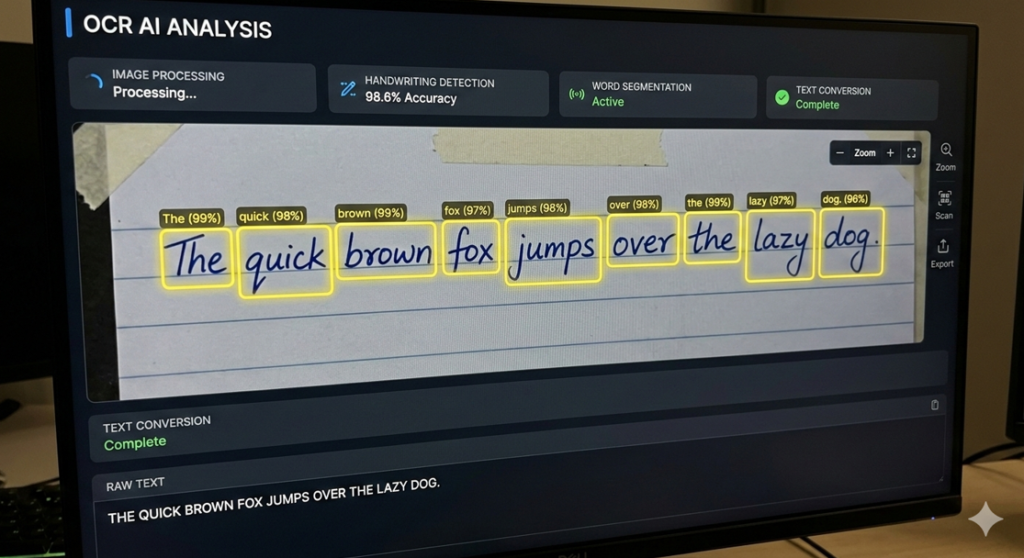
Step-by-Step: Converting Your Notes
While every device (ReMarkable, Supernote, Boox, Kindle Scribe) has a slightly different interface, the general workflow remains consistent.
1. The Selection Method
- Write your notes naturally.
- Select the “Lasso Tool” from your toolbar.
- Circle the specific paragraph you want to digitize.
- Tap the “Convert” or “Text” button in the pop-up menu.
2. The Real-Time Method
Some devices, particularly the Supernote and newer Boox tablets, offer a “Real-Time Recognition” mode. As you write on the lines, the text is converted in the background. When you export the file, the typed text is already waiting for you, hidden behind your handwriting layer.
3. The Export
Once converted, the text usually appears in a preview window. Here, you can correct any typos (OCR is rarely 100% perfect). Finally, you choose “Export to Text,” “Email,” or “Save to Cloud.”
For a broader look at how this fits into a complete workflow, refer to our comprehensive guide on Digital Note Taking Mastery.
Tips for Improving Accuracy
If you find the AI is constantly misreading your “t”s as “l”s, you might need to adjust your hardware or your habits.
Write on the Line
OCR engines rely on baseline detection. If your writing floats diagonally across the page, the AI will struggle to separate lines of text. Use a “Lined” or “Grid” template background to keep your sentences straight.
Check Your Hardware
Believe it or not, the condition of your stylus affects digital clarity. If your nib is worn down flat, the device may register strokes inconsistently or create “jagged” lines that confuse the AI.
- Maintenance Tip: Replacing your tips regularly ensures precise stroke detection.
- Upgrade: Many power users switch to Stylus Nibs for a more durable, precise writing point that mimics the feel of a ballpoint pen.
Language Settings
Ensure your notebook’s language setting matches the language you are writing in. If the AI is expecting English but you are writing notes in Spanish, the conversion will be gibberish because it is trying to force English dictionary words onto Spanish strokes.
Conclusion
Handwriting to text conversion is the bridge that makes digital note-taking viable for professionals. It allows you to think and create with the freedom of a pen, while still producing the structured data required by the modern office.
By understanding the limitations of OCR technology and maintaining your stylus hardware, you can turn your E-Ink tablet into a powerful drafting machine, eliminating the need to ever type up a meeting note again.
Frequently Asked Questions (FAQ)
1. Does handwriting conversion work with cursive?
Yes. Modern AI engines are surprisingly good at reading cursive (connected script). In fact, because cursive flows continuously, the AI often has an easier time tracking the stroke order than it does with messy print.
2. Can I convert math equations or diagrams?
Standard text conversion struggles with math. However, specific apps and devices (like the iPad using Nebo or Calculator) allow for “Math Conversion,” turning handwritten formulas into LaTeX or solved equations.
3. Is the conversion 100% accurate?
Rarely. You should expect about 90-95% accuracy if your handwriting is decent. You will almost always need to do a quick proofread to fix proper nouns or technical jargon that isn’t in the AI’s dictionary.
4. Do I need an internet connection to convert notes?
It depends on the device. The reMarkable tablet sends notes to the cloud to convert them (requires Wi-Fi). The Supernote and Onyx Boox process handwriting directly on the device (offline), making them faster and more private.
5. Can I search my handwritten notes without converting them?
Yes! This is called “Searchable Handwriting.” Most E-Ink tablets create a hidden index of your handwriting. You can type “Budget” in the search bar, and it will find the handwritten word “Budget” without you ever converting it to text.